Running out of disk space or experiencing performance slowdowns on your gaming rig? It's a common dilemma for US gamers, who often juggle a vast library of titles while balancing work, family, and life. This comprehensive guide on how to uninstall Steam games is designed for you, the busy enthusiast. We'll walk you through simple, effective methods to free up valuable storage, optimize your PC's performance, and keep your Steam library clean and manageable. Learn the safest ways to remove games, understand how to protect your precious save data, and discover expert tips to streamline your gaming setup. Whether you're making room for a trending new release or simply decluttering, this article provides all the navigational and informational insights you need to become a Steam game management pro, ensuring your PC runs smoothly and your gaming experience remains top-notch.
How do I uninstall a game directly from my Steam library?
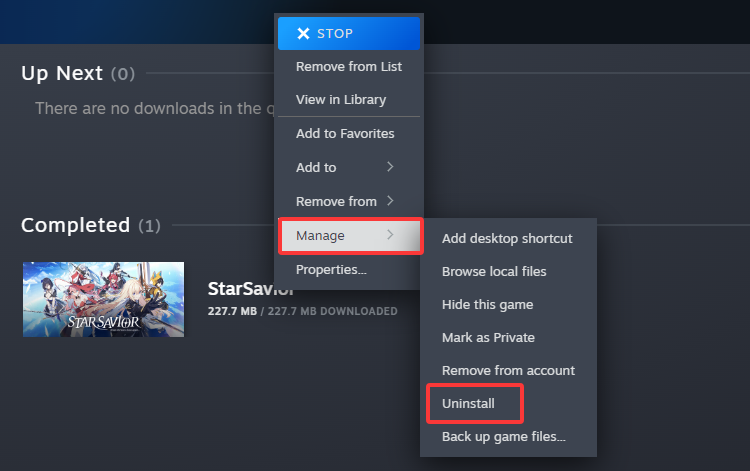
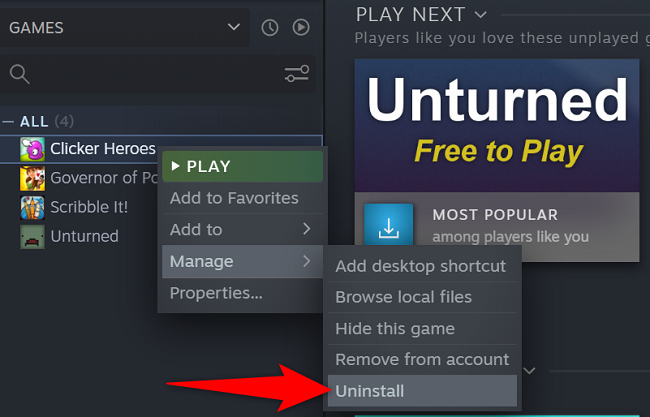
The most straightforward method to uninstall a Steam game is directly through the Steam client. Open Steam, navigate to your Library, right-click on the game you wish to remove, hover over 'Manage', and then select 'Uninstall'. Confirm the action, and Steam will handle the removal process, typically deleting all core game files.
Can I uninstall a Steam game through Windows Settings?
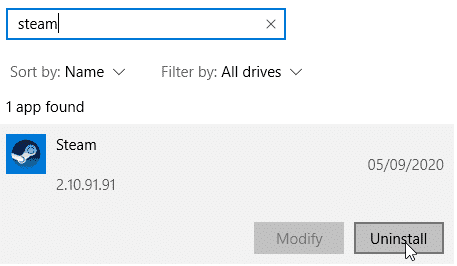
Yes, you can also uninstall Steam games via your operating system's Add or Remove Programs feature. On Windows, go to Settings, then Apps, and search for the game's title. Select it and click 'Uninstall'. While this works, using the Steam client directly is often preferred as it ensures a cleaner removal of Steam-specific files and better integration with your game library status.
Will uninstalling a Steam game delete my save files?
Generally, uninstalling a Steam game does not automatically delete your game save files. Many games store save data in separate locations, often within your Documents folder, AppData, or in the Steam Cloud. If a game uses Steam Cloud Save, your progress is backed up online. However, it's always wise to manually back up critical save files before uninstalling if you're unsure or want extra peace of mind.
What is the difference between uninstalling and deleting local game content?
In Steam, 'Uninstall' completely removes the game files from your computer and updates your Steam library status. 'Delete Local Game Content' is essentially the same action, just named slightly differently in some contexts or older Steam versions. Both actions aim to free up disk space and mark the game as uninstalled within your Steam client, allowing for easy reinstallation later without repurchase.
How can I uninstall multiple Steam games at once efficiently?
Steam's client doesn't offer a direct "batch uninstall" feature for multiple games simultaneously through a simple click. You will need to right-click and uninstall each game individually from your library. However, you can make the process quicker by sorting your library by file size or last played to identify games for removal, then proceed with individual uninstalls.
Is it safe to just delete a Steam game's folder from File Explorer?
No, simply deleting a Steam game's folder directly from File Explorer is generally not recommended. This method bypasses Steam's uninstaller, which is designed to properly remove registry entries and other associated files. While it frees up disk space, it can leave behind residual data, potentially causing issues if you try to reinstall the game later or if Windows encounters orphaned files.
Why do some games still show up in my Steam library after uninstalling?
After uninstalling, games will still appear in your Steam library. This is by design, indicating that you own the game and can reinstall it at any time. The game icon will typically have a 'Download' button or prompt you to install when clicked, rather than 'Play', signifying that the local files have been removed. This system helps you manage your owned games.
Hey fellow gamers! Ever find yourself staring at that 'Low Disk Space' warning, or notice your rig feeling a bit sluggish when you're just trying to unwind with your favorite titles after a long day? You're definitely not alone. For many of us, especially those balancing a career, family, and a passion for gaming, managing our digital game libraries can feel like another chore. With the average US gamer spending 10+ hours a week playing, and 87% playing regularly, we accumulate a lot of games. But too many installed games, even those we rarely touch, can eat up precious hard drive space and impact overall PC performance. That's why knowing how to uninstall Steam games efficiently is a crucial skill for any modern gamer.
This isn't just about making space for the next big release; it's about optimizing your entire gaming experience. A cluttered drive can lead to longer load times, system instability, and just a general feeling of digital overwhelm. We're here to cut through the noise and give you a straightforward, no-nonsense guide to reclaim your disk space and get your PC running smoother. We'll cover everything from the basic steps to advanced tips, ensuring your gaming setup is always ready for action, without the frustration. Let's dive in and transform your Steam library into a lean, mean, gaming machine!
Why Should I Uninstall Steam Games?
Uninstalling Steam games isn't just about making room for new titles; it's a vital part of maintaining a healthy, high-performing gaming PC. Over time, dormant games can consume significant hard drive space, which can lead to system slowdowns, longer boot times, and even issues with other applications. Think of it like decluttering your physical space—less unused stuff means more room to breathe and better organization. For gamers who enjoy a diverse library or frequently try out new free-to-play titles or Game Pass offerings, managing storage is a constant battle. Regularly pruning your library ensures your system has enough free space for essential updates, new downloads, and optimal performance during gameplay.
What's the Safest Way to Uninstall a Steam Game?
The safest and most recommended method to uninstall a Steam game is directly through the Steam client itself. This ensures that the game's files are properly removed, along with any associated registry entries or configurations that Steam manages. Bypassing this method, such as simply deleting the game folder, can leave behind orphaned files and potentially cause issues if you ever decide to reinstall the game. Steam's uninstaller is designed to clean up after itself thoroughly, making it the most reliable choice for a hassle-free removal. Always opt for the in-client method to keep your system tidy and error-free.
Step-by-Step Guide to Uninstall a Steam Game via the Client
Follow these simple steps for a clean uninstall:
Open Steam: Launch the Steam client on your PC.
Go to Library: Click on 'Library' at the top of the Steam window to view all your owned games.
Locate the Game: Scroll through your game list or use the search bar to find the game you wish to uninstall.
Right-Click the Game: Right-click on the game's title in your library. A context menu will appear.
Select Manage: From the context menu, hover your mouse over 'Manage'.
Choose Uninstall: Click on 'Uninstall'.
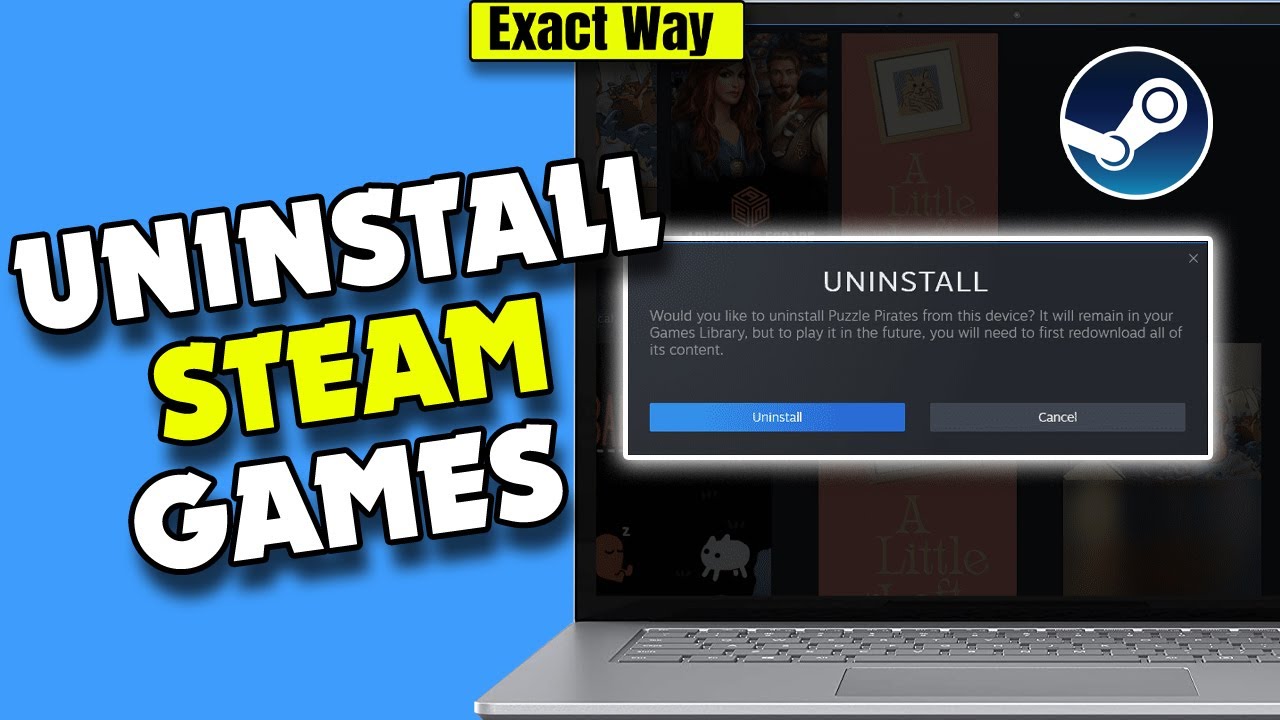
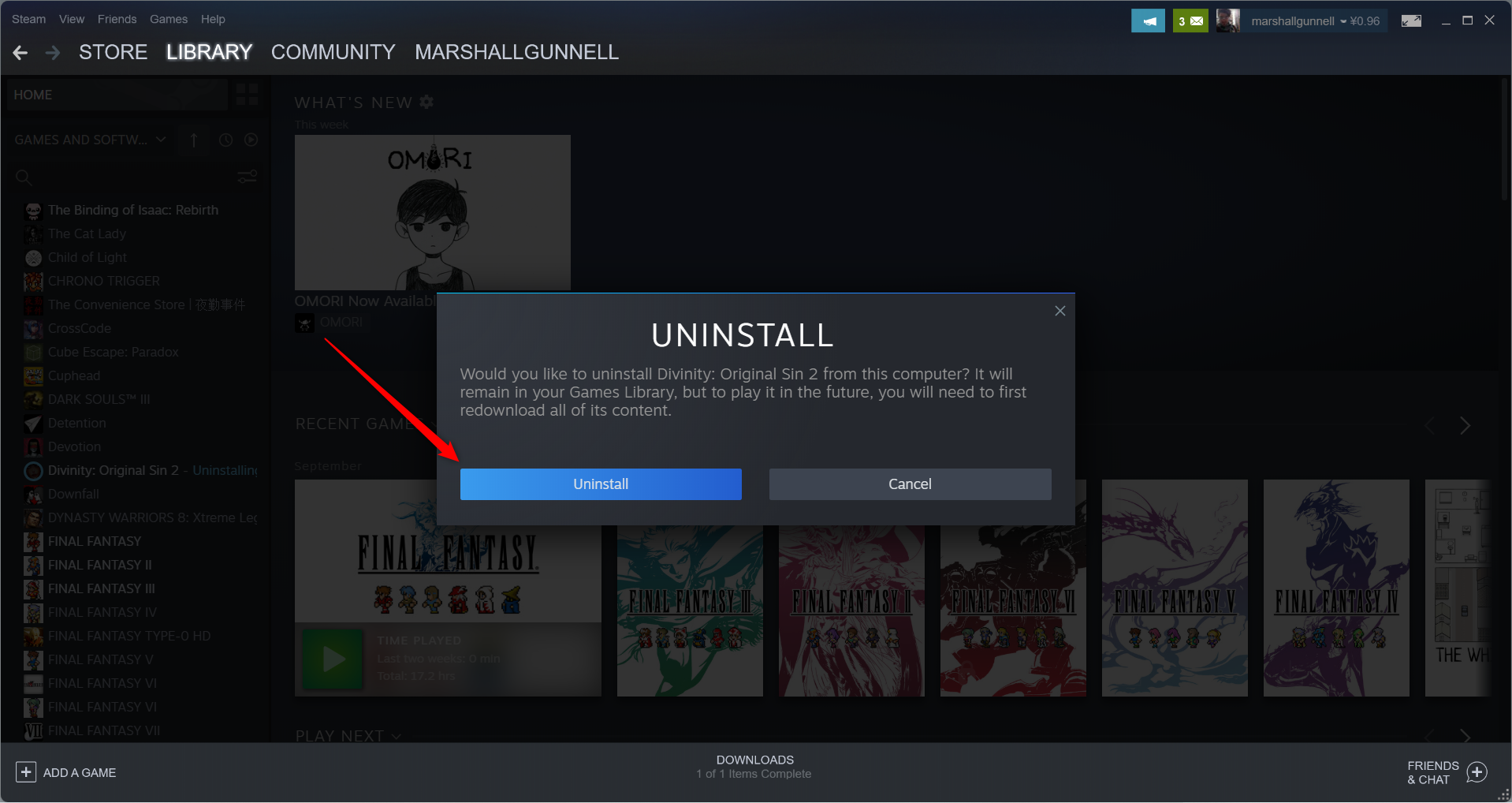
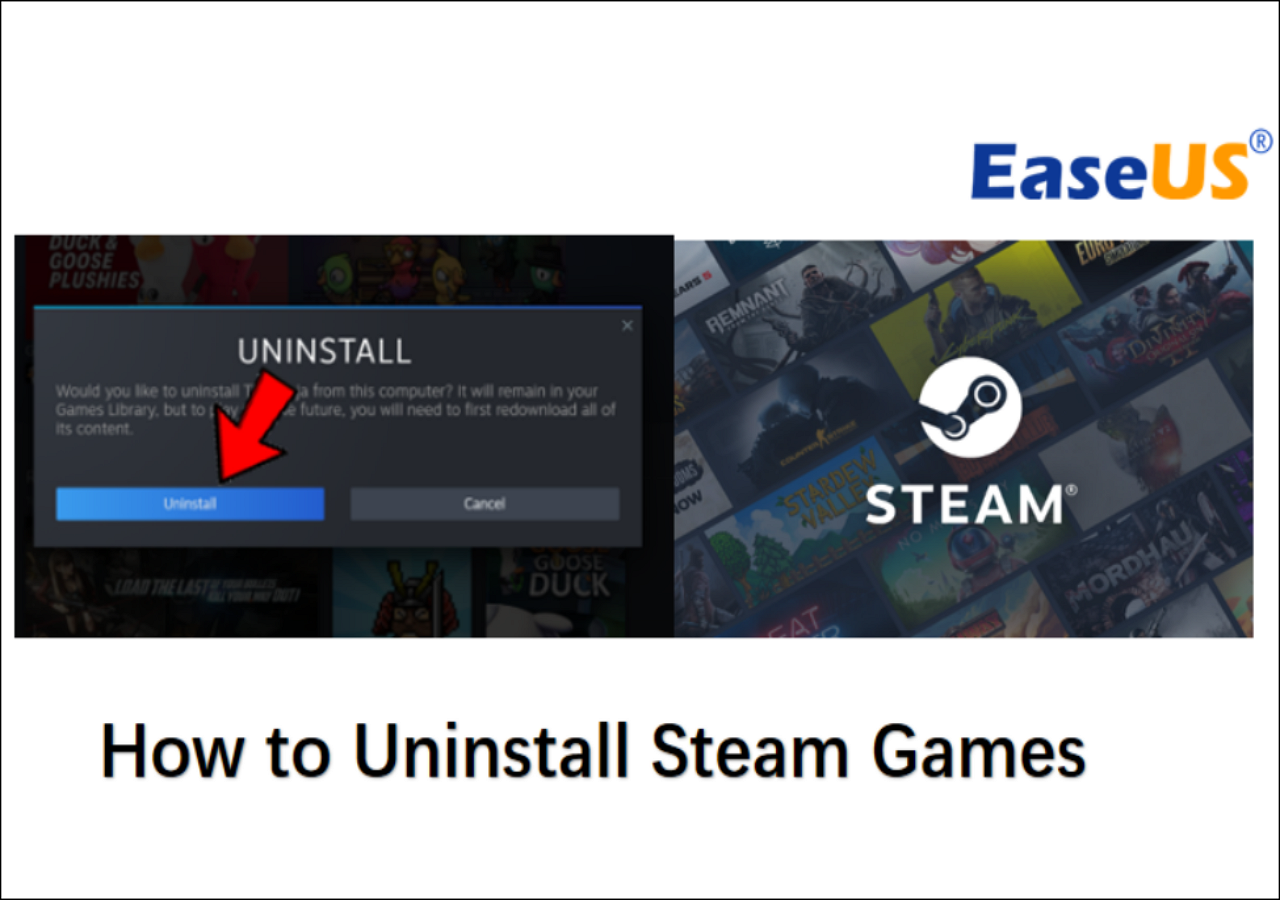
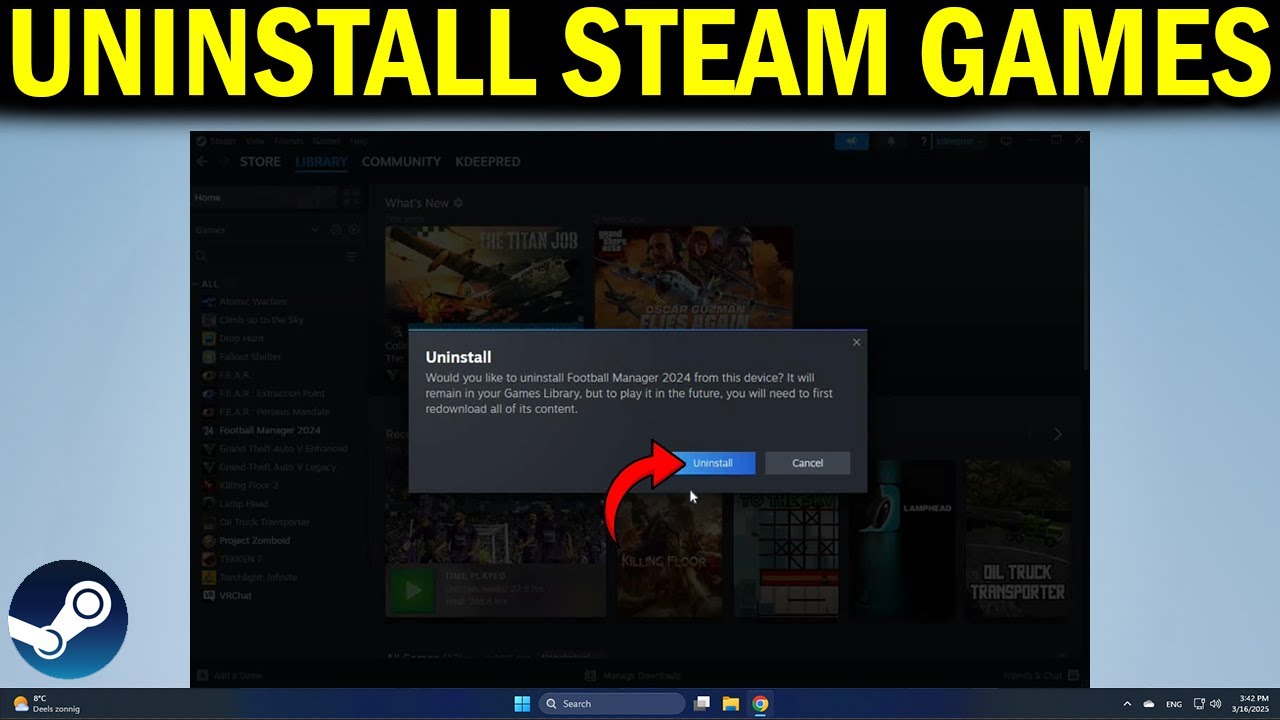
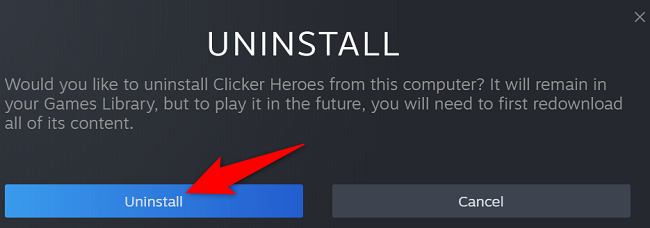
Confirm: A pop-up window will ask you to confirm the uninstallation. Click 'Uninstall' again to proceed.
Monitor Progress: Steam will now begin removing the game files. Depending on the game's size, this may take a few moments. Once complete, the game will still appear in your library but will show 'Install' instead of 'Play', indicating it's no longer on your drive.
Can I Uninstall Steam Games Without Deleting Save Data?
Yes, generally, uninstalling a Steam game does not automatically delete your game save files. Most games store save data in separate locations, often within your Windows 'Documents' folder, 'AppData' directory, or specifically within the game's user profile folders, which are typically not touched by Steam's uninstaller. Furthermore, many modern games utilize Steam Cloud Save, meaning your progress is backed up online and can be downloaded again when you reinstall the game. This is a huge benefit for busy gamers, ensuring their precious progress isn't lost. However, for critical or particularly long-running games, it's always a good practice to manually back up your save files to an external drive or cloud service before uninstalling, just for that extra layer of peace of mind.
How Do I Uninstall Multiple Steam Games at Once?
Unfortunately, Steam doesn't offer a direct 'batch uninstall' feature within its client where you can select multiple games and remove them all with a single click. You'll need to uninstall each game individually using the right-click -> Manage -> Uninstall method. While this might seem tedious if you have many games to remove, you can make the process more efficient. Try sorting your Steam library by 'Size on Disk' to identify the largest games consuming the most space, or by 'Last Played' to quickly pinpoint titles you haven't touched in ages. This focused approach can help you decide which games to target first, making the individual uninstall process feel less daunting. Some third-party PC management tools might offer batch uninstallation features, but sticking to the official Steam client is always the safest bet to avoid potential system conflicts.
What Happens if I Just Delete the Game Folder?
Simply deleting a Steam game's folder directly from File Explorer is **not recommended** and can lead to several problems. While it might seem like a quick way to free up space, this method bypasses Steam's uninstallation process entirely. When you delete a folder manually:
Leftover Files: It often leaves behind residual files, such as configuration files, shader caches, and even some data within the SteamApps common folder.
Registry Entries: Crucially, it won't remove the game's associated entries in your Windows Registry. These orphaned entries can cause system clutter, minor errors, or even conflicts if you try to reinstall the game later.
Steam Client Confusion: Your Steam client won't recognize that the game has been removed, potentially leading to errors if you try to launch it or manage its files, requiring you to manually 'Delete Local Game Content' within Steam to correct its status.
Always use the Steam client's uninstall feature for a clean, complete removal.
How Do I Reinstall a Game After Uninstalling It?
Reinstalling a game after uninstalling it from Steam is incredibly simple and straightforward, leveraging your digital ownership. As long as the game is still available on Steam and you own it, you can reinstall it at any time without needing to repurchase it. This flexibility is perfect for gamers who need to manage space for a limited time and then want to revisit old favorites. Just follow these steps:
Open Steam: Launch the Steam client.
Go to Library: Navigate to your game 'Library'.
Locate the Game: Find the game you want to reinstall. It will still be listed in your library, but instead of a 'Play' button, you'll see an 'Install' button or prompt.
Click Install: Click on the 'Install' button.
Choose Installation Location (if prompted): If you have multiple Steam libraries set up on different drives, you may be prompted to choose where you want to install the game. Select your preferred drive.
Confirm: Steam will then begin downloading and installing the game. You can monitor the progress in the 'Downloads' section of the Steam client.
Your game will be ready to play once the installation is complete, and if it uses Steam Cloud, your saved progress will automatically sync.
Does Uninstalling a Game Free Up All Its Disk Space?
While uninstalling a game via Steam frees up the vast majority of its disk space, it's possible for a few residual files to remain. These might include:
Save Files: As discussed, save files are often stored separately and are typically not removed by the uninstaller to preserve your progress.
Configuration Files: Some games leave behind small configuration files in your 'Documents' or 'AppData' folders, which are usually harmless and take up minimal space.
Shader Caches: Graphics drivers or games might create shader caches that persist. These can sometimes be cleared through your GPU control panel settings or by manually deleting specific folders if you know where they are (e.g., in AppData for NVIDIA or AMD caches).
For most users, the space reclaimed by Steam's uninstaller is sufficient. If you're an advanced user striving for absolute cleanliness, you might manually check common residual file locations, but for the average gamer, this isn't usually necessary.
When Should I Consider Uninstalling My Least Played Games?
For gamers balancing work, family, and play, optimizing your setup is key. Consider uninstalling your least played games when:
Disk Space is Low: This is the most obvious reason. If your primary drive (where Steam is often installed) is running low on space, it can severely impact system performance.
Performance Dips: While an uninstalled game won't directly affect performance, a constantly full drive can. Freeing up space can indirectly lead to a snappier system.
You're Done With Them: Finished a single-player game and don't plan to revisit it? Time to free up that digital real estate.
Trying New Games: With the constant influx of new releases, especially free-to-play titles, you'll want space to jump into the latest trends without fuss.
Seasonal Play: If you only play certain games seasonally (e.g., a specific horror game around Halloween), uninstalling it afterward and reinstalling it next year is a smart move.
Think of it as active library management, ensuring your most-played and trending games always have prime real estate.
Are There Any Risks When Uninstalling Steam Games?
When you follow the recommended method of uninstalling a Steam game through the Steam client, the risks are minimal to almost non-existent. Steam's process is designed to be safe and efficient. The primary 'risk' is usually limited to:
Accidental Save Deletion (Rare): While Steam Cloud and local save files are generally preserved, in very rare cases or with specific game configurations, save data might be lost if not properly backed up or if a game's save system is unusually integrated with its installation directory. Always confirm save file locations if you're concerned.
Incomplete Removal (Manual Deletion): As mentioned, manually deleting folders can leave behind registry entries or residual files, leading to minor system clutter or potential conflicts if you reinstall the game later. This is easily avoided by using the Steam client's uninstaller.
As long as you stick to the official Steam uninstallation method, you can proceed with confidence, knowing your system and other games will remain unaffected.
Can I Uninstall a Game to Move It to Another Drive?
Yes, but you don't actually need to uninstall a game to move it to another drive within Steam. Steam has a built-in feature specifically for this purpose, which is much more efficient than uninstalling and then reinstalling to a new location. This is a lifesaver for gamers who upgrade their storage or want to move larger games to faster SSDs.
How to Move a Steam Game to Another Drive:
Set Up a New Library Folder: First, ensure you have a Steam Library folder set up on the target drive. Go to Steam -> Settings -> Storage, click the '+' icon, and select or create a new Steam Library folder on your desired drive.
Locate Game in Library: In your Steam Library, right-click on the game you want to move.
Select Properties: Click on 'Properties'.
Go to Local Files: In the Properties window, select the 'Local Files' tab.
Click 'Move Install Folder...': This option will appear. Click it.
Choose New Location: Select the new Steam Library folder you set up on your other drive from the dropdown menu.
Click 'Move Folder': Steam will then transfer the game files to the new location. This is much faster than downloading the game again.
This feature is perfect for optimizing your storage without losing download time, making it easier for busy gamers to keep their setups streamlined.
Conclusion
Mastering how to uninstall Steam games is more than just a tech trick; it's a fundamental skill for any dedicated gamer in 2026. By regularly managing your game library, you not only free up crucial disk space but also ensure your PC performs at its peak, allowing you to enjoy your favorite titles without frustrating slowdowns. We've covered the safest methods, protected your precious save files, and even showed you how to move games between drives seamlessly. Staying on top of your digital real estate means more fun, less stress, and a gaming rig that's always ready for adventure.
What's your biggest gaming challenge when it comes to managing your PC? Comment below! Your insights help us tailor future guides to the real needs of our gaming community.
FAQ Section
Is it better to uninstall from Steam or Windows' Add or Remove Programs?
It's generally better to uninstall directly from the Steam client. This method ensures a cleaner removal, updating your Steam library status correctly and minimizing leftover files and registry entries specific to Steam's installation.
Does uninstalling a game remove its achievements from my Steam profile?
No, uninstalling a game does not remove achievements from your Steam profile. Achievements are tied to your Steam account and are permanently recorded once earned, regardless of whether the game is currently installed on your PC or not.
How do I verify game files after reinstallation to ensure a clean install?
After reinstalling a game, you can verify its files within Steam. Right-click the game in your Library, go to 'Properties', then 'Local Files', and click 'Verify integrity of game files...'. Steam will check for any corrupted or missing files and redownload them.
Can I recover a game I accidentally uninstalled?
Yes, you can easily recover an accidentally uninstalled game. Since you own it on Steam, it will still appear in your library. Simply click the 'Install' button next to its title, and Steam will begin downloading and reinstalling it for you.
What should I do if a game won't uninstall properly?
If a game won't uninstall properly, try restarting Steam or your PC and attempting the uninstall again. If the issue persists, you might need to manually delete the game folder after attempting the uninstall, and then use a registry cleaner (with caution) or consult Steam support for specific troubleshooting steps.
Are there any tools to help manage Steam game installations?
Beyond Steam's built-in features, tools like Steam Library Manager (SLM) can help organize and move games between different drives. Always research and use reputable third-party tools, but for basic uninstallations, Steam's client is sufficient.
Does uninstalling a game affect other games on my Steam client?
No, uninstalling one game from your Steam client does not affect other installed games or the Steam client's functionality itself. Each game is treated as an independent installation, so removing one will not impact the performance or integrity of others.
Disk space management, performance optimization, freeing up PC resources, managing Steam library, step-by-step game removal, protecting game saves, clean uninstall methods, troubleshooting common issues, efficient game management tips for gamers.
35


How To Uninstall Steam Games 2026 YouTube . How To Uninstall Steam Games Completely 2026 UPDATED YouTube . How To Completely Uninstall Steam Games 2026 YouTube . How To Uninstall A Steam Game PCWorld Click Uninstall . How To Uninstall Steam Game On PC Mac Best Tutorial YouTube

:max_bytes(150000):strip_icc()/steam-uninstall-ba72a88d2b3f4d319fbe9e7263bd88e9.png)

How To Uninstall Steam Games Uninstall Steam Game Ss2 768x409 . How To Uninstall Steam Games Steam Uninstall . GUIDE How To Uninstall Steam Very Quickly Easily YouTube . How To Uninstall Games From Steam To Free Up Space How Do You Uninstall Games From Steam Free Up Space . How To Uninstall Games On Steam Easy Step By Step Guide 2025 YouTube


Steam Games 2026 How To Uninstall Steam Games 5 . How To Uninstall Games From Steam How To Delete Games From Steam . How To Uninstall Steam Games Inside Steam App YouTube . How To Uninstall Steam Games With 3 Methods On Windows . How To Uninstall Steam Games Quickly And Easily How To Uninstall Steam Games


How To Uninstall Steam Games YouTube . How To Completely UNINSTALL And DELETE All Game Files From Steam QUICK . How To Uninstall Steam Games 2 Uninstall Steam Game . How To Uninstall Steam Games YouTube . How To Uninstall Steam Games TechCult Click On UNINSTALL To Confirm A Game In Steam




How To Properly Uninstall Games From Steam For Space LevelUpTalk Steam Uninstall Process 02 07 2026 Cafa76ce 415f 4282 Bde9. How To Uninstall Games On Steam Tutorial YouTube . How To Uninstall Steam Games 3 Steam Uninstall Prompt . How To Uninstall Delete Games All At Once On STEAM Easy Tutorial . How To Uninstall Steam Games On Mac And Windows Linux Too OS X Daily Howto Uninstall Steam Game 2


How To Quickly Uninstall Steam In 3 Simple Steps 2026 WePC WePC STEAM How To Uninstall 01 . How To Uninstall Steam Games With 3 Methods On Windows . How To Uninstall And Reinstall Games On Steam 2026 Easy Guide YouTube . How To Quickly Uninstall Steam In 3 Simple Steps 2026 WePC How To Uninstall Steam 3 . How To Uninstall Steam Games And Reinstall Them Later Complete 2026 The Best Single Player Games 768x439


How To Uninstall Steam Games With 3 Methods On Windows . 4 Ways To Uninstall Steam WikiHow Aid9230637 V4 728px Uninstall Steam Step 11 . How To Uninstall Steam Games Step By Step YouTube . How To Uninstall Your STEAM GAMES On PC Settings Tutorial YouTube . How To Uninstall Steam Games YouTube