Navigating communication on Roblox can be tricky, especially for busy adult gamers who balance their virtual adventures with real-world responsibilities. This comprehensive guide simplifies how you talk on Roblox, covering everything from basic text chat to the evolving voice chat features. Understand the age requirements, safety protocols, and effective communication strategies that will enhance your gameplay and social interactions without adding stress. We delve into popular methods, essential settings, and troubleshooting tips, ensuring you spend less time figuring things out and more time enjoying the vast Roblox metaverse. Learn to connect with friends, coordinate in games, and make the most of your limited gaming hours, all while staying current with the latest platform updates and security best practices for 2026. This article is designed to empower you with the knowledge needed to confidently engage with the Roblox community, making your gaming experience more enjoyable and efficient, whether you are on PC or mobile.
Q: What are the fundamental steps to use text chat in any Roblox game?
A: To use text chat, first ensure you are in a Roblox game. Look for the chat icon, typically a speech bubble, usually located in the top-left or bottom-right corner of your screen. Click or tap this icon to open the chat window. A text input box will appear; type your message there and press Enter on PC or the send button on mobile to share your message with other players in the game.
Q: How can I enable and use Spatial Voice Chat on Roblox as an older gamer?
A: For older gamers, enabling Spatial Voice requires age verification. You must be 13+ and verify your age using a government-issued ID and a selfie via Roblox's third-party partner. Once verified, go to your Account Settings, navigate to the Privacy tab, and toggle on the 'Spatial Voice' option. Then, join any Spatial Voice-enabled experience, and you'll see a microphone icon to mute/unmute yourself.
Q: What specific privacy settings should I adjust to control who can communicate with me on Roblox?
A: To control communication, go to your Account Settings and select the 'Privacy' tab. Here, you'll find options like 'Who can chat with me in game?' and 'Who can message me?'. For more control, set these to 'Friends' or 'Friends and Users I Follow' instead of 'Everyone'. This limits unwanted interactions and creates a more secure gaming environment.
Q: Why might my text or voice chat not be working in Roblox, and what's the first thing I should check?
A: If your chat isn't working, the first thing to check is your Roblox account's age setting and privacy configurations. Ensure your birth date is correct and that 'Who can chat with me in game?' is not set to 'No One'. For voice chat, also confirm your age verification is complete and your device's microphone permissions are granted to Roblox.
Q: Are there any useful chat commands or shortcuts I should know for quicker communication in Roblox?
A: While most chat is direct typing, some common commands include /me [action] for role-playing, and /team [message] to send messages only to your teammates in supported games. These are typed into the chat box, beginning with a forward slash. Their availability can depend on the specific game you are playing.
Q: What are Roblox's current safety guidelines regarding sharing personal information in chat?
A: Roblox has strict guidelines against sharing personal information (real name, address, phone number, email, social media links) in chat. Their automated filters actively block such content, appearing as hashtags. To stay safe, never attempt to bypass these filters or share private data, even if asked by others. Report any requests for personal info immediately.
Q: How does Roblox communication cater to gamers who play predominantly on mobile devices?
A: Roblox is highly optimized for mobile, ensuring that all communication features, including text and Spatial Voice chat, function seamlessly on smartphones and tablets. The user interface adapts for touchscreens, making it easy to access the chat window, type messages, and control your microphone, allowing for consistent social interaction across all platforms.
For many of us adult gamers, Roblox isn't just a platform for kids anymore; it's a vibrant, ever-evolving metaverse offering diverse experiences that can be a fantastic way to unwind after a long day, connect with friends, or even build new skills. Whether you're coordinating an intricate build, strategizing in a competitive game, or simply chatting with buddies in a cozy experience, knowing how to talk on Roblox effectively is absolutely essential. With about 87% of US gamers engaging regularly, often spending 10 or more hours a week, and a significant portion balancing gaming with jobs and families, efficient and clear communication saves precious time and elevates the fun. This guide is tailored for you: the busy gamer who wants to jump in, connect, and enjoy without getting bogged down by technicalities or safety concerns. Let's cut through the noise and get straight to enhancing your Roblox social experience in 2026.
We understand that you value relaxation, fun, and perhaps a bit of skill-building without the hype. This article aims to address common pain points like figuring out new features, ensuring a safe experience, and making the most of your social interactions on a platform that's constantly updating. Mobile gaming, for example, continues its dominance, making seamless cross-platform communication more important than ever. By the end of this guide, you'll be well-equipped to navigate all the communication options Roblox offers, allowing you to focus on what truly matters: having a great time and connecting with your fellow players.
How Do You Use Text Chat in Roblox Games?
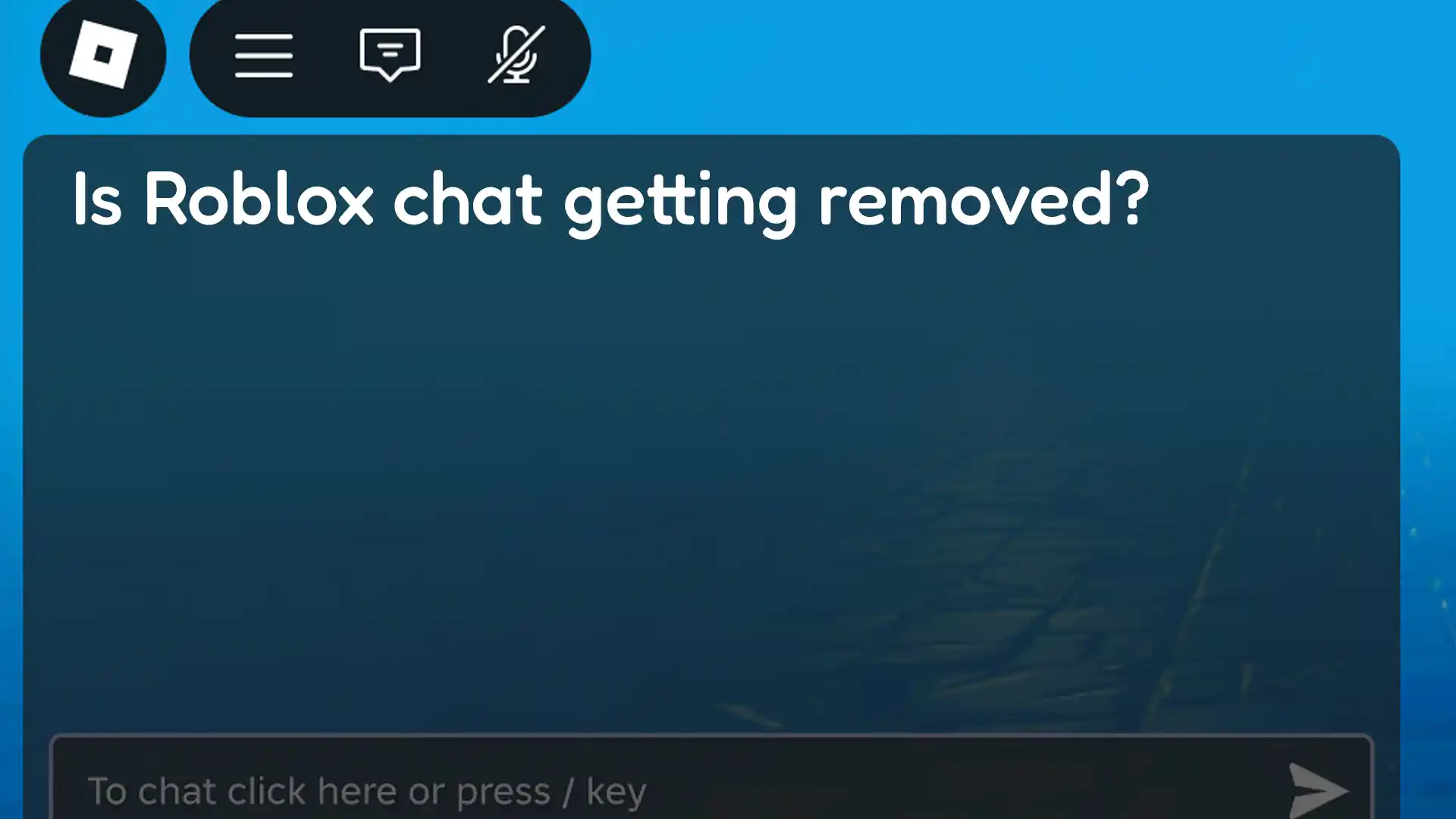
Text chat is the most fundamental way to communicate in Roblox and is available to nearly all players, with some age-based restrictions. When you're in a game, you'll typically see a chat icon, often located in the top-left or bottom-right corner of your screen. Clicking or tapping this icon opens a chat window and a text input box. Simply type your message into this box and press Enter on your keyboard, or the send button if you're on a mobile device, to broadcast your message to other players within the game. Roblox employs a robust chat filtering system to block inappropriate content and personal information, ensuring a safer environment, especially for younger players. This system evolves continuously, reflecting current safety trends and community feedback.
For adult gamers, understanding the filtering can be crucial. Sometimes legitimate words might get filtered, appearing as hashtags. This is usually due to the system's broad net to protect all users. You can often rephrase your message or use common Roblox abbreviations to get your point across. Remember, effective communication involves adapting to these filters. Keeping messages concise and relevant to the game you're playing also helps maintain a positive chat environment.
What is Roblox Voice Chat and How Do I Enable It?
Roblox Voice Chat, officially known as Spatial Voice, is a revolutionary feature allowing players to communicate verbally in experiences that support it. It's a game-changer for social interaction, as it mimics real-world conversations where the volume of a player's voice depends on their proximity to you in the virtual world. To enable Spatial Voice, you must be 13 years or older and have verified your age on Roblox. This involves uploading a photo of your government-issued ID (like a driver's license or passport) and taking a selfie for biometric verification. The process is handled by a third-party service, Veriff, ensuring user privacy and security.
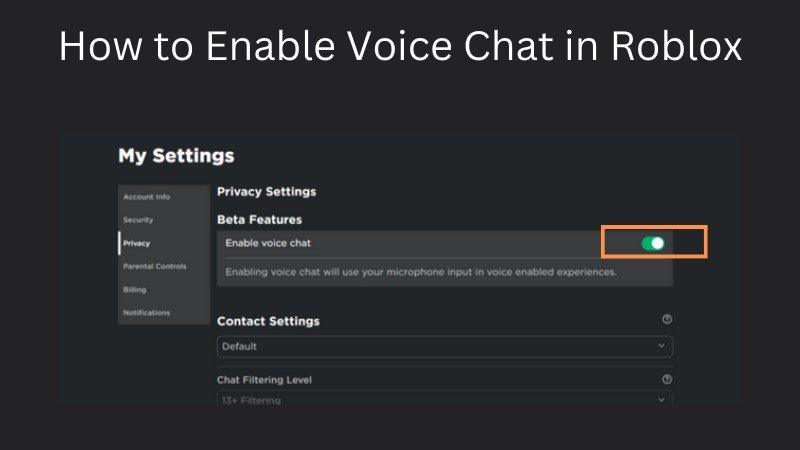
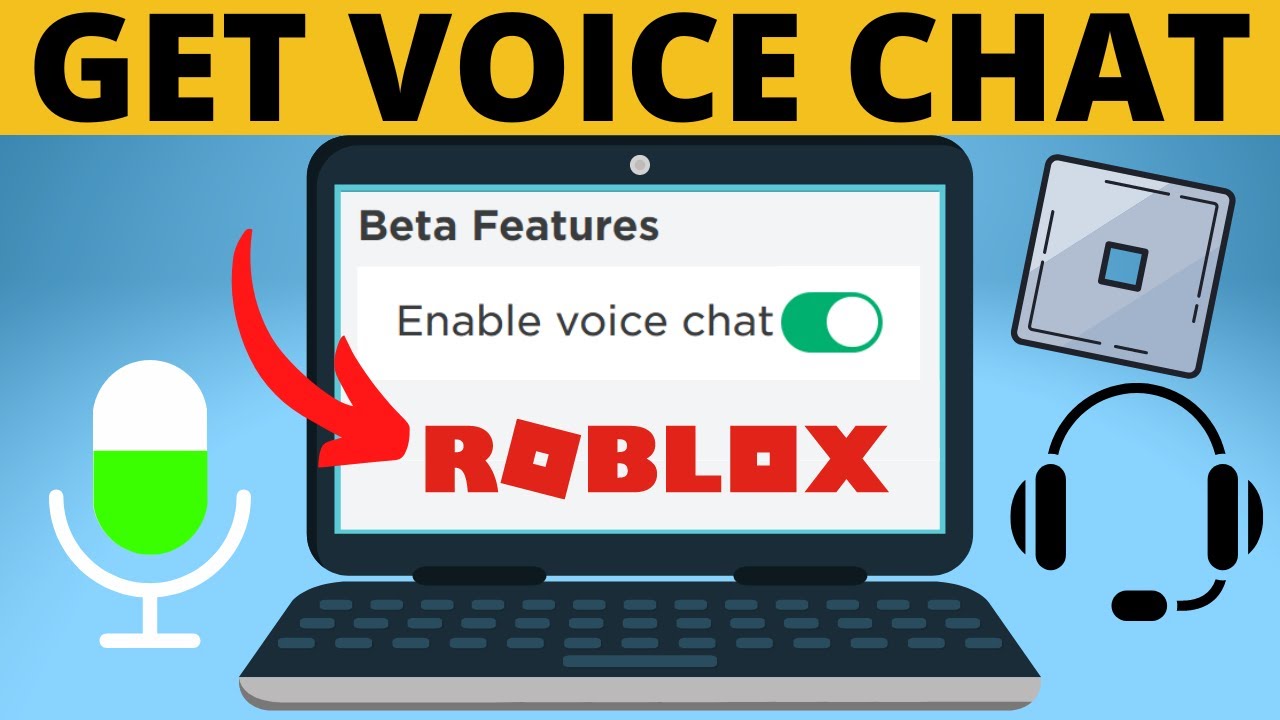
Once your age is verified, navigate to your Roblox account settings, go to the 'Privacy' tab, and you should see a toggle option to enable 'Spatial Voice'. After enabling it, you can join any Spatial Voice-enabled experience. You'll typically see a microphone icon above your character's head; clicking this will mute/unmute your microphone. This feature has become incredibly popular, especially among older demographics looking for more immersive social gaming experiences, aligning with the broader trend of increased voice communication in online games across the US gaming landscape.
Who Can Use Roblox Voice Chat and Are There Age Restrictions?
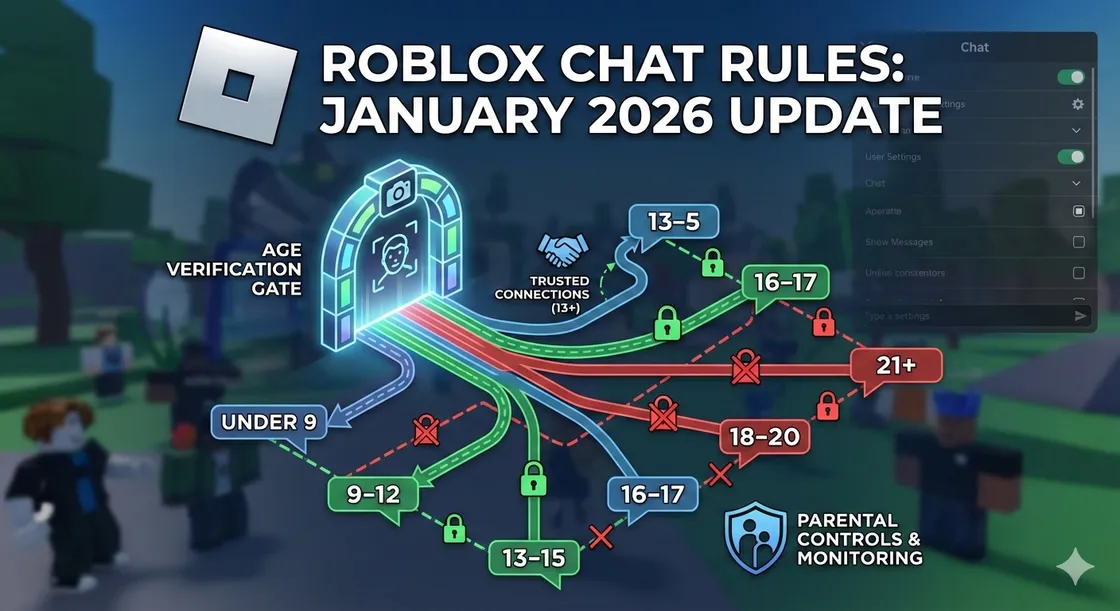
Roblox Voice Chat is exclusively available to users who are 13 years of age or older. This age restriction is strictly enforced and is tied to the age verification process mentioned previously. If you are under 13, the option to enable Spatial Voice will not appear in your privacy settings, and you will not be able to participate in voice chat. This policy is in place to comply with online child safety regulations and to provide a more mature communication environment for older users.
For adult gamers, this means you'll largely be interacting with other verified users in voice chat, which can lead to more engaging and age-appropriate conversations. While age verification might seem like an extra step, it's a crucial layer of security and ensures that the voice chat feature provides a better experience for its intended audience, fostering a community that values both fun and safety.
How Do I Stay Safe When Communicating on Roblox?
Staying safe while communicating on Roblox is paramount, regardless of whether you're using text or voice chat. Roblox has implemented numerous features to protect its users, and being aware of them is your first line of defense. Always remember that the platform strictly prohibits sharing personal information like your real name, address, phone number, email, or social media handles. The chat filters are designed to catch and block such attempts, but it's important not to try to bypass them.
Here are key safety tips:
- Never share personal details with anyone you don't know and trust in real life.
- Report any suspicious or inappropriate behavior immediately using the 'Report Abuse' feature, which is easily accessible in-game.
- Be cautious of links shared in chat; they might lead to phishing sites or malware.
- Utilize privacy settings to control who can send you messages, who can chat with you in games, and who can follow you.
- If using voice chat, be mindful of your surroundings and what background noise might be picked up.
- Educate yourself about common online scams, such as 'free Robux' offers that often require personal information.
Roblox's commitment to safety is continuously evolving, with regular updates to their moderation systems and educational resources for users. For busy gamers juggling work and family, these safeguards mean you can enjoy the social aspect of Roblox with greater peace of mind.
Can I Talk on Roblox on Mobile Devices as Easily as on PC?
Absolutely! Roblox is highly optimized for mobile devices, and communication features are just as accessible and functional on smartphones and tablets as they are on PC. Given the mobile dominance in US gaming, with a large percentage of gamers frequently playing on their phones, Roblox ensures a seamless cross-platform experience. Whether you're using text chat or Spatial Voice, the functionality remains largely the same across devices.
On mobile, the chat icon is typically prominent on your screen. Tapping it brings up the chat window and your device's virtual keyboard. For Spatial Voice, once enabled in your settings, the microphone icon will appear above your avatar in supported experiences. The main difference might be the input method (virtual keyboard vs. physical keyboard), but the core ability to communicate is identical. This flexibility allows gamers to connect with friends and participate in events regardless of where they are or what device they're using, making it perfect for those quick gaming breaks throughout a busy day.
What are Some Common Chat Commands in Roblox?
While most communication is done by simply typing, Roblox also supports a few useful chat commands that can enhance your interaction or help manage your experience. These commands are typed directly into the chat box, usually starting with a forward slash (/).
/me [message]: This command allows you to role-play or describe an action, appearing as *YourName [message]*. For example,/me waves hellowould show as *PlayerName waves hello*./whisper [playername] [message]: This command is less common now with dedicated private messaging features, but in some older games, it might allow you to send a private message to a specific player in the same server./team [message]: In games with teams, this command lets you send a message only to your teammates, which is incredibly useful for strategy and coordination.
It's worth noting that the availability and functionality of specific chat commands can vary slightly depending on the individual Roblox experience (game) you are playing, as developers can customize or add their own commands. Always check the game's description or help section if you're unsure about specific in-game commands.
Why Might My Chat Not Be Working on Roblox? Troubleshooting Tips for Gamers.
It can be frustrating when you want to connect with friends or coordinate in a game, but your chat isn't working. There are several common reasons why this might happen, and thankfully, most are easy to troubleshoot. For adult gamers who want quick solutions, here's a checklist:
- Account Restrictions: If your account is set to an age under 13, chat features will be heavily restricted, and voice chat will be unavailable. Check your birth date in your Roblox account settings.
- Privacy Settings: Ensure your privacy settings allow others to chat with you. Go to 'Account Settings' -> 'Privacy' and check the 'Who can chat with me in game?' and 'Who can message me?' options. Set them to 'Friends' or 'Everyone' as desired.
- Game-Specific Issues: Some Roblox experiences might disable chat entirely or for specific sections. This is a developer choice. Try joining a different game to see if the issue persists.
- Internet Connection: A poor or unstable internet connection can disrupt chat functions. Check your Wi-Fi or data connection.
- Roblox Server Issues: Occasionally, Roblox itself might experience server issues. Check platforms like DownDetector or Roblox's official social media channels for outage reports.
- Parental Controls: If your account is linked to parental controls, they might be restricting chat. Discuss this with whoever manages those controls.
- Microphone Permissions (Voice Chat): For Spatial Voice, ensure Roblox has permission to access your microphone in your device's operating system settings (e.g., Windows Privacy Settings, iOS/Android App Permissions).
- Microphone Hardware (Voice Chat): Make sure your microphone is properly connected, not muted (physically or digitally), and is selected as the default input device.
By systematically checking these points, you can quickly identify and resolve most chat-related problems, getting you back to communicating with your fellow gamers in no time.
What Are the Best Practices for Effective Communication in Roblox?
Effective communication in Roblox, especially for gamers balancing life's demands, means getting your message across clearly and respectfully. Here are some best practices:
- Be Clear and Concise: Get straight to the point. Long, rambling messages can be annoying or difficult to read in fast-paced games.
- Use Emojis/Emotes Appropriately: Roblox's built-in emotes can convey emotion or actions quickly without typing. Emojis in text chat can also add nuance.
- Respect Chat Filters: Don't try to bypass filters with creative spellings of inappropriate words. This can lead to warnings or account moderation.
- Listen/Read First: Before jumping into a conversation, take a moment to understand the context. Are people discussing a strategy? A game objective?
- Stay Positive: Contribute to a friendly and constructive environment. Avoid arguments or negativity. Remember, you're gaming to relax!
- Use Team Chat for Strategy: If your game has a team chat, use it for coordination that doesn't need to be seen by the opposing team or all players.
- Report, Don't Engage: If someone is being toxic or inappropriate, don't engage in a back-and-forth. Simply use the 'Report Abuse' feature.
By following these guidelines, you'll not only enhance your own gaming experience but also contribute to a more positive and engaging community for everyone on Roblox.
How Can Gamers Optimize Their Roblox Privacy Settings for Chat?
Optimizing your privacy settings is a powerful way to control who can communicate with you on Roblox, ensuring a more tailored and secure social experience. For gamers who prioritize a balance between social interaction and privacy, these settings are crucial. You can access them by going to 'Account Settings' (the gear icon) and then selecting the 'Privacy' tab.
Key settings to review include:
- Who can chat with me in game?: Options typically include 'Everyone', 'Friends', 'Friends and Users I Follow', or 'No One'. Setting this to 'Friends' or 'Friends and Users I Follow' is generally recommended for a more controlled social environment.
- Who can message me?: Similar options apply here. Limiting messages to 'Friends' can prevent unsolicited communication.
- Who can invite me to private servers?: If you prefer to only join games with people you know, restrict this to 'Friends'.
- Who can make me a friend?: You can set this to 'Everyone' or 'Friends of Friends'.
Regularly reviewing these settings, especially after platform updates, ensures your communication preferences align with your comfort level. This proactive approach to privacy allows you to fully enjoy the social aspects of Roblox without unnecessary distractions, a key consideration for many adult gamers who value their time and online peace.
Conclusion
Navigating the communication landscape of Roblox, from basic text chat to the immersive Spatial Voice, is key to truly enjoying all the platform has to offer. For adult gamers balancing life, work, and precious free time, understanding how to talk on Roblox efficiently and safely means more fun and less frustration. We've covered the essentials: enabling voice chat, understanding age restrictions, staying safe, troubleshooting common issues, and mastering communication etiquette. Remember, the Roblox platform is constantly evolving, with new features and safety measures rolling out to enhance your experience in 2026 and beyond. By staying informed and proactive with your settings, you can confidently connect with friends, collaborate in games, and make the most of your time in the metaverse. What's your biggest gaming challenge when it comes to connecting with others in online games? Comment below!
FAQ Section
Q: Can I turn off chat completely on Roblox?
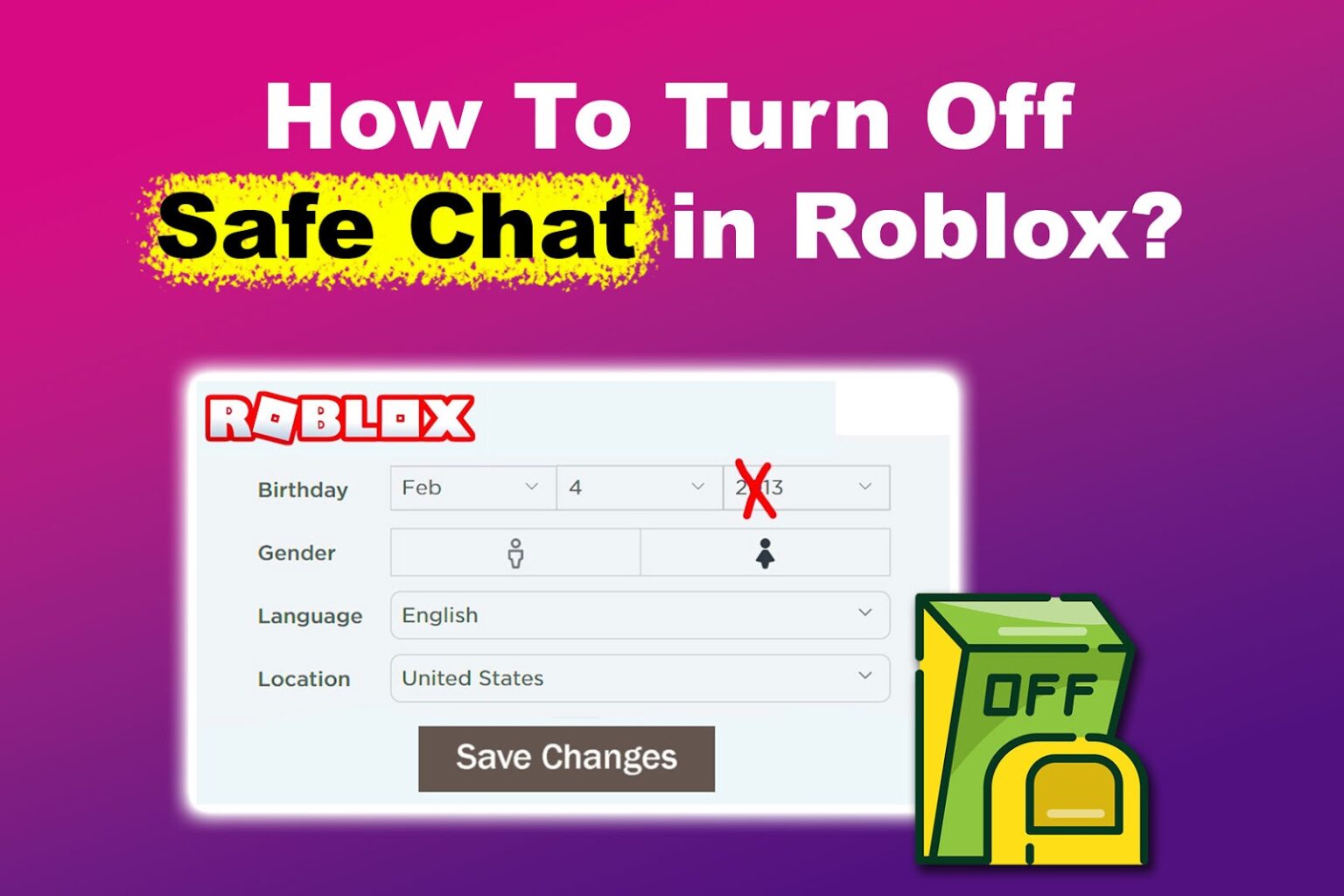
A: Yes, you can disable in-game chat by adjusting your privacy settings. Go to Account Settings > Privacy and set 'Who can chat with me in game?' to 'No One'. This will prevent you from seeing or sending messages in most experiences.
Q: What if I'm under 13 but want to use voice chat?
A: Roblox Spatial Voice (voice chat) is strictly for users 13 years and older. There is no workaround for this age restriction, as it's in place for safety and compliance reasons. You'll need to wait until your account reflects an age of 13 or higher and then complete age verification.
Q: How do I report someone for inappropriate chat on Roblox?
A: To report a player, click on their username in the game or access the in-game menu (often represented by the Roblox icon). Look for the 'Report Abuse' option, select the reason for the report (e.g., 'Inappropriate Chat'), and provide details. Roblox's moderation team will review your report.
Q: Are there any costs associated with using Roblox chat or voice chat?
A: No, both text chat and Spatial Voice (voice chat) are free features included with your Roblox account. You do not need to purchase Robux or any special passes to use them, beyond meeting the age and verification requirements for voice chat.
Q: How do I verify my age on Roblox for voice chat?
A: To verify your age, go to your Account Settings, then the 'Privacy' tab. Look for the 'Age Verification' option. You will be prompted to use a mobile device to scan a government-issued photo ID and take a live selfie for biometric comparison. This process is handled by a third-party identity verification service.
Q: What if my voice chat suddenly stops working?
A: First, check if your microphone is muted in-game or on your device. Ensure Roblox has microphone permissions in your device's settings. Also, verify your internet connection. If the issue persists, try restarting the Roblox application or your device, and check for any Roblox updates.
Q: Can I use Discord to talk to friends while playing Roblox?
A: Many adult gamers use external communication apps like Discord to chat with friends while playing Roblox. This allows for more flexible and private conversations, especially if you're playing with a consistent group. Roblox's in-game chat is for general server communication, while Discord offers dedicated voice channels for your gaming party.
Roblox communication, enabling voice chat, text chat basics, age verification for chat, in-game communication tips, Roblox safety features, reporting issues, mobile chat, privacy settings, connecting with friends, Roblox etiquette
35


How Does The Roblox Push To Talk Button Work Effectively How To Enable Voice Chat In Roblox 2026.webp. Roblox S New Chat Rules Explained January 2026 Roblox New Chat Rules . How To Message On Roblox 2026 A Quick Guide . Turn On Voice Chat In Roblox How To USE Voice Chat In Roblox IPad . 2025 Come Attivare La Chat Vocale In Roblox Guida Rapida Enable Voice Chat Roblox Steps




Roblox On Xbox Can You Chat With Your Voice . Roblox On Xbox Can You Chat With Your Voice . Can 17 Year Olds Use Voice Chat On Roblox Today PC Mobile How To Get Voice Chat On Roblox . How To Message On Roblox 2026 A Quick Guide Private Chat In Roblox Step 11 . How To Chat With A Friend On Roblox YouTube



Roblox Chat 2026 The New Age Based Chat System Explained Roblox Chat Was Eltern Wissen Muessen.BP BcCTF ZXnRaV.webp. Why Won T My Roblox Voice Chat Work Simple Fixes . Roblox On Xbox Can You Chat With Your Voice . How To Voice Chat Online How To Get Voice Chat Roblox MGNAR . How To Message On Roblox 2026 A Quick Guide


How To Get Voice Chat In Roblox . How To Chat With Friends On Roblox After Update 2025 YouTube . How To Get Voice Chat On Roblox 2025 WITHOUT ID YouTube . Level Up Your Roblox Chat Talking To People Made Easy . Can You Call Roblox Support For Immediate Help




HOW To ENABLE VOICE CHAT On ROBLOX In 2026 How To Get Voice Chat Img. Can 17 Year Olds Use Voice Chat On Roblox Today . Is Roblox Removing Chat In 2026 Answered Gamer Tweak Roblox Chat Age. How To Message On Roblox 2026 A Quick Guide . A Mother Or Father S Information To Utilizing Roblox In 2026 Ivugangingo 2026 Parental Guide For Roblox Usage UnicMinds


Roblox Chat Off How Do I Do It For 2026 How Turn Off Safe Chat Roblox 1536x1024 . How To Publish A Game On Roblox In 2026 Roblox YouTube . How To Message On Roblox 2026 A Quick Guide . How To Message On Roblox 2026 A Quick Guide SL1500 . How To Message On Roblox 2026 A Quick Guide


Roblox Chat Rooms Your Guide To Connecting Amp Chat . How To Message On Roblox 2026 A Quick Guide . What Is The Roblox Assessment Experience On Reddit Oar2 . Roblox Voice Chat Not Working How To Fix It Step By Step Roblox Voice Chat Settings . How To Enable Voice Chat In Roblox Fixes Tips Enable Voice Chat In Roblox