Unlock the full potential of your Roblox creations by mastering Roblox Core Decals. This comprehensive guide delves into everything you need to know about these essential visual assets, from finding and uploading to optimizing their performance and ensuring moderation compliance. For creators balancing game development with busy lives, understanding decals means crafting richer, more immersive experiences efficiently. Learn how to personalize your builds, enhance player engagement, and make your games stand out in a thriving digital landscape. Discover trending decal usage, common pitfalls to avoid, and expert tips for maximizing visual impact without compromising performance. Whether you are building elaborate worlds or simply customizing your personal space, this resource will equip you with the knowledge to leverage Roblox Core Decals effectively, ensuring your designs are both unique and high-quality for an optimal gaming experience.
How do Roblox Core Decals enhance game immersion?
Decals are crucial for adding detailed visual flair to your Roblox builds, from realistic textures on walls to custom UI elements. They allow creators to break free from generic assets, offering unique visual storytelling and making your game stand out in a crowded market. For players, this means a richer, more engaging environment, often leading to longer play sessions and a deeper connection to the game world. It's about turning a simple block into a vibrant, unique piece of art, directly impacting player immersion.
What are the common pitfalls when uploading a new Roblox Decal?
The most frequent issues when uploading decals include copyright infringement, which leads to immediate rejection, and submitting low-resolution images that appear pixelated in-game. Additionally, not optimizing file sizes can cause longer loading times for players, especially those on mobile devices or slower connections. Ensure your images are appropriate for all ages to pass moderation swiftly. Always double-check transparency settings, as incorrect alpha channels can result in unwanted white backgrounds instead of clear overlays.
Where can I find unique Roblox Decal IDs for my projects?
Unique Roblox Decal IDs can be found in several places. The official Roblox Creator Marketplace is a primary source where you can browse community-uploaded assets and copy their IDs. Many dedicated Roblox community forums, Discord servers, and fan-run websites also share curated lists of popular and aesthetic decal IDs. Remember to always verify the ID on Roblox's platform before integrating it into your game to ensure it's still active and appropriate. You can also derive the ID from any image asset's URL on the Roblox website.
Is there a best size or resolution for Roblox Decals?
While Roblox resizes images, a recommended resolution for optimal decal quality without excessive file size is generally around 512x512 pixels or 1024x1024 pixels. Square dimensions are often preferred for texture mapping, but rectangular images are also supported. The key is to find a balance between visual fidelity and performance. Avoid excessively large images (e.g., 4096x4096) unless absolutely necessary, as they can consume more memory and slow down loading, especially for the 87% of US gamers who play regularly and value smooth experiences.
Why are some Roblox Decals appearing blurry or stretched in my game?
Blurry or stretched decals usually stem from incorrect scaling or resolution issues. If your original image is low-resolution, Roblox stretching it over a large surface will inherently cause blurriness. Conversely, applying a high-resolution decal to a very small surface can also make it appear less sharp. Ensure your decal's aspect ratio matches the surface it's being applied to, or use Roblox Studio's `Texture.StudsPerTileU` and `Texture.StudsPerTileV` properties to precisely control tiling and avoid stretching. Checking your image dimensions before upload is crucial.
How can I create my own custom Roblox Core Decals effectively?
Creating custom decals effectively involves using a graphic design tool like Photoshop, GIMP, or even free online editors to design your image. Focus on clear, high-contrast visuals if it's meant to stand out. Save your image in a supported format like PNG or JPG. For transparency, use PNG with an alpha channel. Before uploading to Roblox, ensure your image adheres to community standards to pass moderation quickly. Test your decal on various surfaces and lighting conditions within Roblox Studio to fine-tune its appearance and ensure it looks as intended.
What's the difference between a Decal and a Texture object in Roblox Studio?
In Roblox Studio, a Decal projects an image onto a single surface of a part, like a sticker, without altering the part's material properties. It's ideal for adding graffiti, signs, or temporary markings. A Texture, on the other hand, is applied to all surfaces of a part and works in conjunction with the part's material to define its overall appearance, often tiling across the surface. While both use image IDs, `Decal` is for singular applications, and `Texture` is for material definition. Understanding this distinction is key for optimized visuals and performance.
Are you a dedicated gamer, balancing your passion for virtual worlds with the realities of work and family life? If you are, you know every moment in your favorite game counts. And if that game is Roblox, you also know the thrill of creating something uniquely yours. But sometimes, bringing your vision to life on Roblox can feel like a maze, especially when it comes to custom visuals. Ever struggled with a generic looking build, or found your custom graphics weren't quite hitting the mark? You are not alone. Many US gamers, part of the 87% who game regularly, often spend upwards of 10 hours a week across various platforms, including Roblox. They value efficiency and impact in their creative endeavors.
This guide is crafted for you, the busy builder and savvy player who wants to elevate their Roblox experience without unnecessary fuss. We are diving deep into the world of 'Roblox Core Decals' – those unsung heroes of customization that transform ordinary parts into extraordinary masterpieces. Whether you want to add intricate details to your game environment, create unique character accessories, or simply make your personal space pop, mastering decals is key. We will cover everything from finding the perfect decal ID to uploading your own artwork, ensuring it looks fantastic and performs smoothly. Let's make your Roblox creations truly shine.
What Exactly is a Roblox Core Decal and Why Does it Matter?
A Roblox Core Decal is essentially an image file that has been uploaded to the Roblox platform and is assigned a unique Asset ID. Think of it as a digital sticker or a projection of an image onto a surface within your Roblox game or experience. Unlike a texture that might tile across an entire part, a decal is typically applied to a single face of a part, making it perfect for specific details like signs, graffiti, posters, or custom labels. It matters immensely because decals are fundamental to customization and visual storytelling in Roblox. They allow creators to add layers of detail and personality without needing complex 3D models for every single visual element.
For the average gamer who enjoys creating, decals are a powerful tool for self-expression and differentiation. They bridge the gap between basic building blocks and polished, immersive environments. Without decals, many of the unique visual styles and branding seen in popular Roblox games would simply not exist. They are a core component for bringing your creative vision to life efficiently.
How Do I Find and Use a Roblox Core Decal ID?
Finding and using Roblox Core Decal IDs is a straightforward process, but knowing where to look and what to do is key. The most common place to find existing decal IDs is the Roblox Creator Marketplace. You can search for 'decal' or specific themes (e.g., 'brick decal,' 'wood decal') and browse through community-uploaded assets. When you click on a decal, its asset page will open, and the numerical ID in the URL is the Decal ID you need. For example, if the URL is 'www.roblox.com/library/123456789/My-Awesome-Decal', then '123456789' is the ID.
Once you have an ID, using it in Roblox Studio is simple. Insert a 'Part' into your workspace, then in the 'Explorer' window, right-click the Part, go to 'Insert Object,' and select 'Decal.' In the 'Properties' window for the newly inserted Decal, locate the 'Texture' property. Paste your Decal ID into this field, and the image will appear on one face of the part. You can adjust the 'Face' property of the Decal to position it correctly on your chosen surface. This method allows you to quickly integrate a vast library of visuals into your creations.
What Are the Best Practices for Uploading My Own Decals to Roblox?
Uploading your own custom decals is where your creativity truly shines. To ensure a smooth process and high-quality results, follow these best practices:
- Resolution and Aspect Ratio: Aim for square resolutions like 512x512 or 1024x1024 pixels. While Roblox resizes images, starting with a good resolution prevents blurriness when scaled up. For rectangular decals, maintain the aspect ratio to avoid stretching.
- File Format: Use PNG for images requiring transparency (e.g., logos, cut-out shapes). JPEG is suitable for opaque images or photographs, often offering smaller file sizes.
- Content Moderation: Always adhere to Roblox's Community Standards. Your decal must be family-friendly and free from copyrighted material, inappropriate content, or personal information. Submissions are reviewed by moderators, and non-compliance will lead to rejection.
- File Size Optimization: Keep file sizes as small as possible without compromising quality. Large decal files can increase game loading times, which can be a pain point for players on older devices or slower connections.
- Descriptive Naming: Give your decal a clear and descriptive name during upload. This helps you and others find it later in the Creator Marketplace.
By following these tips, you'll ensure your custom decals are uploaded efficiently, approved quickly, and look fantastic in your game.
How Can I Ensure My Roblox Decals Are Approved by Moderation?
Passing Roblox moderation for your decals is crucial for getting your custom assets into your games. The key is understanding and strictly adhering to Roblox's Community Standards. These rules are designed to keep the platform safe and fun for all ages. Here are critical points to ensure approval:
- Keep it Family-Friendly: Avoid anything that could be considered explicit, graphic, violent, or sexually suggestive. Roblox has a global audience that includes very young players.
- No Hate Speech or Discrimination: Decals cannot contain discriminatory language, symbols, or imagery based on race, ethnicity, religion, gender, sexual orientation, disability, etc.
- Respect Copyright and Intellectual Property: Do not upload images that you do not own or have permission to use. This includes characters, logos, or artwork from popular games, movies, or brands. Creating original content is always the safest bet.
- No Personal Information: Do not include real-world personal information, such as names, addresses, phone numbers, or social media handles.
- Avoid Sensitive Topics: Steer clear of imagery related to illegal activities, drugs, or excessive violence.
Roblox uses both AI and human moderators. If a decal is repeatedly rejected, take time to review the standards and make appropriate changes. Prompt approval means less time waiting and more time creating.
Are There Performance Considerations When Using Many Decals in My Game?
Absolutely, performance is a major consideration, especially for adult gamers who value a smooth experience and often play on a mix of devices, including mobile. While decals are great for detail, using too many can significantly impact game performance, leading to lag, slower loading times, or even crashes, particularly on lower-end devices. Here's what to keep in mind:
- Draw Calls: Every unique decal on screen contributes to 'draw calls,' which are instructions sent to the graphics card. More draw calls mean more work for your GPU. Try to reuse decals where possible.
- Texture Memory: Each decal image consumes texture memory. High-resolution decals, especially many unique ones, can quickly fill up available memory, causing performance dips.
- Mobile Optimization: Given the dominance of mobile gaming (over 60% of US gamers play on mobile this month), optimizing for these devices is crucial. Keep decal resolutions reasonable and total decal count sensible.
- Batching: Roblox Studio tries to batch similar decals to optimize draw calls, but significant variation can break batching.
To mitigate performance issues, aim for a balance between visual detail and optimization. Use decals strategically rather than indiscriminately covering every surface. Consider using a single larger decal where multiple smaller ones might be used, or leveraging texture atlases if you have many small, related images.
Where Can I Find Free or Community-Made Roblox Decals?
Finding free and community-made Roblox decals is a fantastic way to enhance your builds without needing graphic design skills or spending Robux on assets. The primary source, as mentioned, is the Roblox Creator Marketplace. Here's how to navigate it efficiently:
- Search Function: Utilize the search bar. Type in keywords like 'free decal,' 'aesthetic decal,' or specific themes such as 'graffiti,' 'wood grain,' 'metal texture,' or 'signage.'
- Filters: Look for filters on the marketplace. You can sometimes filter by 'Free' or 'Recently Updated' to find new additions.
- Community Hubs: Beyond the official marketplace, many Roblox community Discord servers, fan-run websites, and YouTube channels share curated lists of useful decal IDs. These often highlight popular or trending assets.
- Open Source Projects: Some Roblox creators publish their games or assets as open source. By exploring these projects in Roblox Studio, you can often find and extract decal IDs they've used.
Always remember to check the asset details for any usage restrictions, though most decals shared on the Creator Marketplace are intended for public use. Copying the asset ID from the URL is the easiest way to grab them.
How Do Decals Differ From Textures or Images in Roblox Studio?
While 'decal,' 'texture,' and 'image' are often used interchangeably in casual conversation, in Roblox Studio, they have distinct technical meanings and uses:
- Decal: As we've discussed, a `Decal` is an instance object (`Decal` class) that projects an image onto a single face of a `Part`. It adheres like a sticker and doesn't inherently tile or change the material properties of the part. It's best for specific, non-repeating visuals.
- Texture: A `Texture` object (`Texture` class) is similar to a decal in that it uses an image ID, but it typically applies and tiles an image across *all* surfaces of a part. It's often used to define the overall look of a material (e.g., making a plastic part look like brick or concrete). It works in conjunction with the part's `Material` property.
- Image (ImageLabel/ImageButton): These are GUI elements (`ImageLabel` or `ImageButton` classes) used in `ScreenGui` or `SurfaceGui` to display images on the user interface or on surfaces within the 3D world, respectively. They are used for UI design, buttons, or static displays, not for altering the surface appearance of a `Part` in the same way a `Decal` or `Texture` does.
Understanding these differences is crucial for efficient and effective game design. Using the right tool for the job ensures optimal visuals and performance.
What Common Issues Should I Avoid When Working With Roblox Core Decals?
Even seasoned Roblox developers encounter snags with decals. Being aware of common issues can save you headaches:
- Misplaced Decals: Accidentally applying a decal to the wrong face of a part, or having it clip through another object. Always double-check the `Face` property and adjust the `ZIndex` if necessary.
- Blurry or Pixelated Decals: Often caused by using a low-resolution image stretched over a large surface. Ensure your source image has adequate resolution.
- Stretched or Squished Decals: This happens when the decal's aspect ratio doesn't match the surface it's applied to, or when `Texture.StudsPerTileU` and `Texture.StudsPerTileV` are improperly set for `Texture` objects.
- Moderation Rejections: As discussed, copyright infringement or inappropriate content are frequent causes. Always create original, appropriate content.
- Performance Hogs: Using too many high-resolution, unique decals, particularly in dense areas, can lead to lag. Prioritize optimization.
- Transparency Issues: If your decal should have transparent areas but appears with a white or black background, you likely used an incorrect file format (like JPG) or the PNG file wasn't saved with an alpha channel.
Regularly testing your game on different devices can help catch these issues early.
Can I Use Decals to Create Animated Effects in Roblox?
While a single Roblox Core Decal itself is a static image, clever use of decals in conjunction with scripting or other Roblox features can absolutely create the *illusion* of animation or dynamic effects. Here are a few ways:
- Scripted Visibility: You can use Lua scripts to rapidly toggle the `Transparency` property of multiple decals on and off in sequence, creating a flickering or flashing effect.
- Decal Swapping: By having several decals (each with a different frame of animation) hidden, a script can quickly change the `Texture` property of a single `Decal` object to cycle through these frames, mimicking a traditional sprite animation.
- Decal Movement: While not the decal itself animating, you can attach decals to moving parts or use TweenService to animate the part the decal is on, making the decal appear to move.
- Particle Effects with Decals: Sometimes, custom images (effectively decals) are used within particle emitters to create unique visual effects like sparks, smoke, or magical glows that appear to animate as they move and fade.
So, while decals aren't inherently animated like GIFs, their flexibility allows creative developers to achieve impressive dynamic visual effects within Roblox.
How Do I Share My Custom Decals With Others in the Roblox Community?
Sharing your custom decals is a fantastic way to contribute to the vibrant Roblox community and get your creations seen. Once you've uploaded a decal and it's passed moderation, it automatically becomes an asset in the Roblox Creator Marketplace. Here's how you can actively share it:
- Direct Link Sharing: Navigate to your decal's asset page on the Roblox website. Copy the URL from your browser's address bar. This link can be shared on social media, Discord, Roblox forums, or other community platforms.
- Asset ID Sharing: Simply provide the Decal ID (the numerical string in the URL). Other creators can then paste this ID directly into their Roblox Studio projects.
- Showcasing in Games: The best way to share is to use your decal in your own public Roblox games. When players see your amazing visuals, they'll often seek out how you created them, leading them to your assets.
- Tutorials and Showcases: If you're creating a particularly innovative decal, consider making a short video tutorial or a showcase article. Many busy adult gamers love seeing practical examples and getting tips from fellow creators.
Sharing your work fosters collaboration and helps other creators build even more incredible experiences, reflecting the social and collaborative spirit that 87% of US gamers value.
Conclusion
Mastering Roblox Core Decals is a vital skill for any creator looking to elevate their game development. From understanding their function and efficiently finding IDs to optimizing performance and navigating moderation, these insights empower you to transform your visions into captivating virtual realities. Decals are more than just images; they're instruments of immersion, customization, and community engagement. By applying these strategies, you are not just building games; you are crafting experiences that resonate with players who seek both relaxation and creative challenge.
What's your biggest challenge when adding custom visuals to your Roblox games? Share your thoughts and tips in the comments below!
FAQ Section
What image formats does Roblox support for decals? Roblox primarily supports PNG and JPG (or JPEG) image formats for decals. For images requiring transparent backgrounds or alpha channels, PNG is the recommended format to ensure transparency is correctly rendered in your game.
Can decals be resized or scaled after applying them? Yes, once a decal is applied to a part in Roblox Studio, you can adjust the size of the part it's on, which will scale the decal along with the part. You can also use the `Offset` and `Scale` properties within the `Decal` object to fine-tune its position and relative size on the part's face.
Is there a limit to how many decals I can upload? Roblox does have limits on the number of assets a user can upload daily, which can vary. While there isn't a strict lifetime cap mentioned, it's generally good practice to upload only necessary assets and maintain an organized inventory to avoid clutter and potential moderation flags for excessive, unused content.
How do I delete an unwanted decal from my inventory? Currently, users cannot permanently delete assets (including decals) from their Roblox inventory or creations. You can 'archive' or 'unlist' them from sale on the Creator Marketplace, making them harder for others to find, but they remain associated with your account. For personal use, simply don't use the ID.
Do decals cost Robux to upload? No, uploading decals (and most other image assets) to Roblox does not cost Robux. This makes it a very accessible feature for all creators, regardless of their Robux balance, fostering a rich environment for user-generated content and customization.
How long does decal moderation usually take? Decal moderation times can vary, often ranging from a few minutes to several hours, and sometimes longer during peak periods or for complex content. Using clear, appropriate imagery that strictly adheres to Roblox's Community Standards significantly speeds up the approval process, getting your creations live faster.
What are some popular uses for Roblox Core Decals in games? Popular uses for Roblox Core Decals include adding environmental details like wall art, signs, posters, and graffiti; creating custom textures for props and buildings; designing unique character clothing or accessory overlays; and implementing functional elements like buttons or UI indicators directly onto 3D objects. They are versatile for both aesthetic and functional purposes.
Roblox Decal ID usage, custom image uploads, game asset customization, visual fidelity optimization, moderation guidelines, community resources, performance considerations, graphic design tips.
35


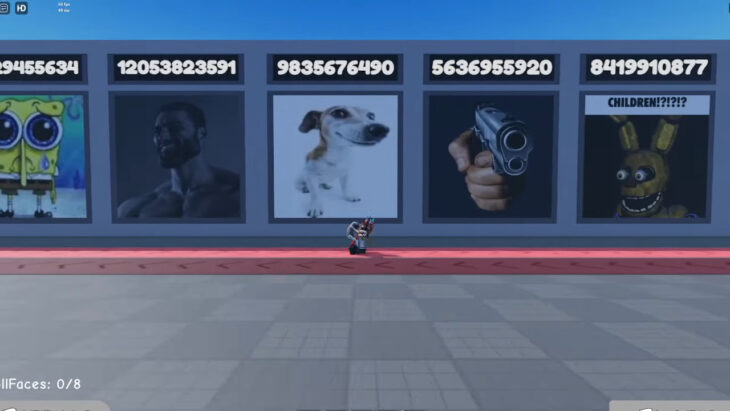

What Are Roblox Ice Decals For 2026 . 2026 Calendar Roblox Decals Royal High Journal Decals Codes Royal . Roblox Aesthetic Decal IDs Your Ultimate 2026 Guide What Are Roblox Decal. Roblox Aesthetic Decal IDs Your Ultimate 2026 Guide How To Use Roblox Decal IDs 730x411 . Roblox DBZ Decals What Are They For 2026 SL1500


What Are Roblox Ice Decals For 2026 Best Decal Ids Roblox . Pin By XxAlyssa On Pins By You Bloxburg Decals Codes Code . Nostalgia Core Roblox Decals Id 2011 Core Image Decal Id Roblox Pic . Cottagecore Roblox Id For Berry Ave Bloxburg Bloxburg Decals Codes . Photo Roblox Decals In 2025 Bloxburg Decals Codes Aesthetic Pattern


What Are Roblox Decal Codes And How Do You Use Them . 72 Roblox Image Ids Ideas Roblox Image Ids Roblox Bloxburg Decal Codes . Roblox Core Roblox Funny Sketch Book Roblox . Roblox New Years 2026 Poster By SmashLeaker On DeviantArt Roblox New Years 2026 Poster By Smashleaker Dl7cn62 Fullview . RLCS 2026 Decals Tier List YouTube


Definitive Guide To Roblox 2026 TM 07169 AU 19 60 Football Heaven TM 07169 Definitive Guide To Roblox 2026 . Roblox 2026 Logo YouTube Oardefault . Prepare For 2026 With Roblox Trends TikTok Img. ROBLOX VAI MUDAR DE LOGO EM 2026 YouTube . Cutecore Roblox Decals Artofit


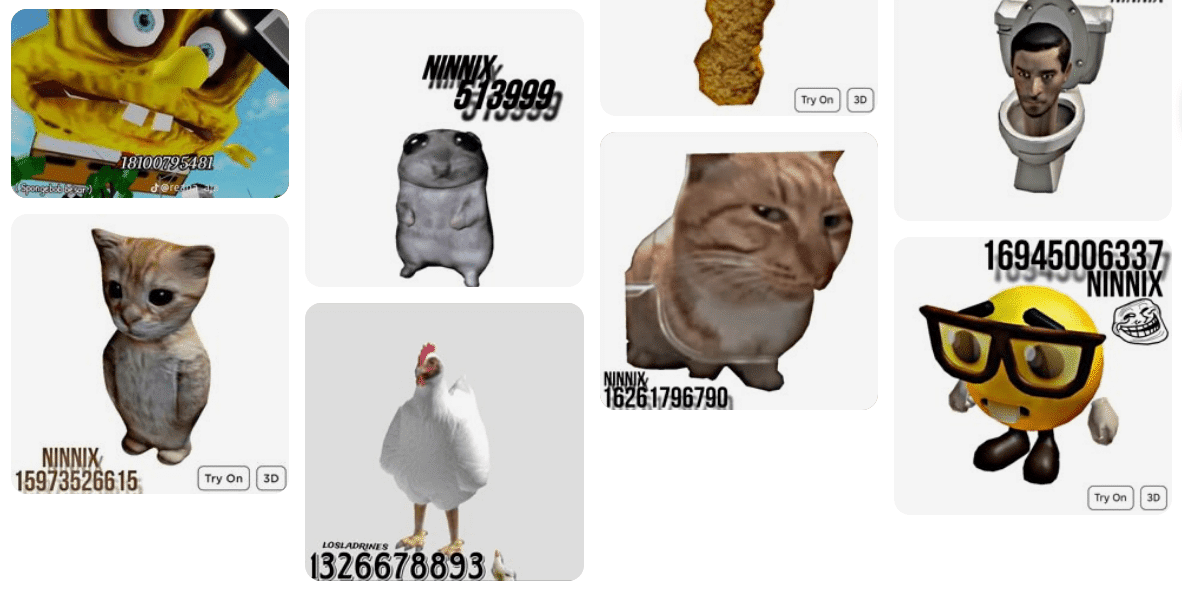
Roblox R6 Explained What Does It Really Mean Oar2 . Unlocking Creativity What Are Roblox Texture Decals . Unlocking Creativity What Are Roblox Texture Decals . Roblox DBZ Decals What Are They For 2026 Maxres2 . What Exactly Is A Roblox Decal And How Can You Use Them Id Decal Roblox Image

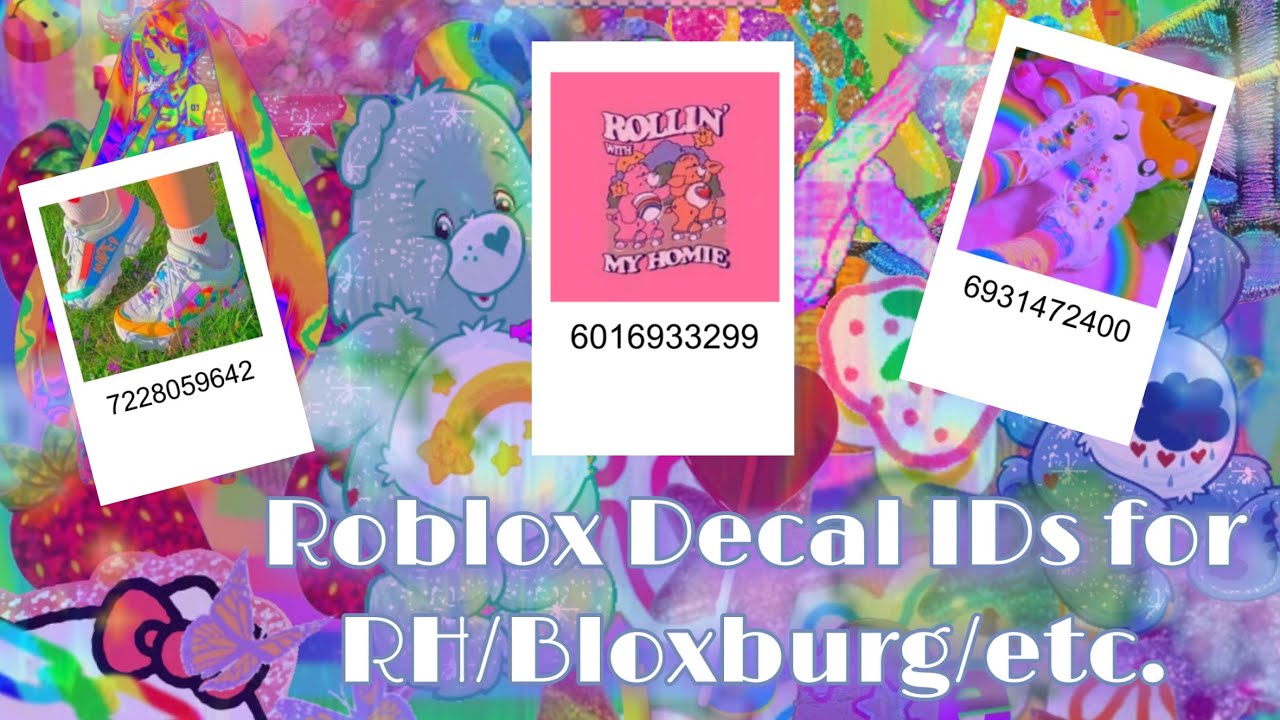


Roblox Core En 2025 Cara De Asombro Imagenes Con Emojis Stickers . Image Id List Roblox Infoupdate Org . How To Create A Decal Roblox 2022 . Space Core Decal ID Bloxburg Berry Ave Anime Decals Space . Roblox COTTAGE CORE Decal Codes Bloxburg 2021 YouTube


100 Best Decal IDs In Roblox July 2026 Beebom Best Decal IDs In Roblox 1 . How To Message On Roblox 2026 A Quick Guide . Pink Roblox Decal Codes . Custom Decals For Roblox Best Roblox Decals Royale High Decal Ids . Roblox Core In 2025 Roblox Memes Septiplier